
How to free up space on your Mac, safely
Before you delete anything, find out where the space went. Then free it in an order that costs you least: steps that lose nothing, then things apps make again, and your own files last.
Find what’s taking up space
macOS shows a summary in System Settings, under General, then Storage. It sorts space into categories such as Applications, Documents, Photos and System Data, which is a good start but doesn’t tell you which folders are big.
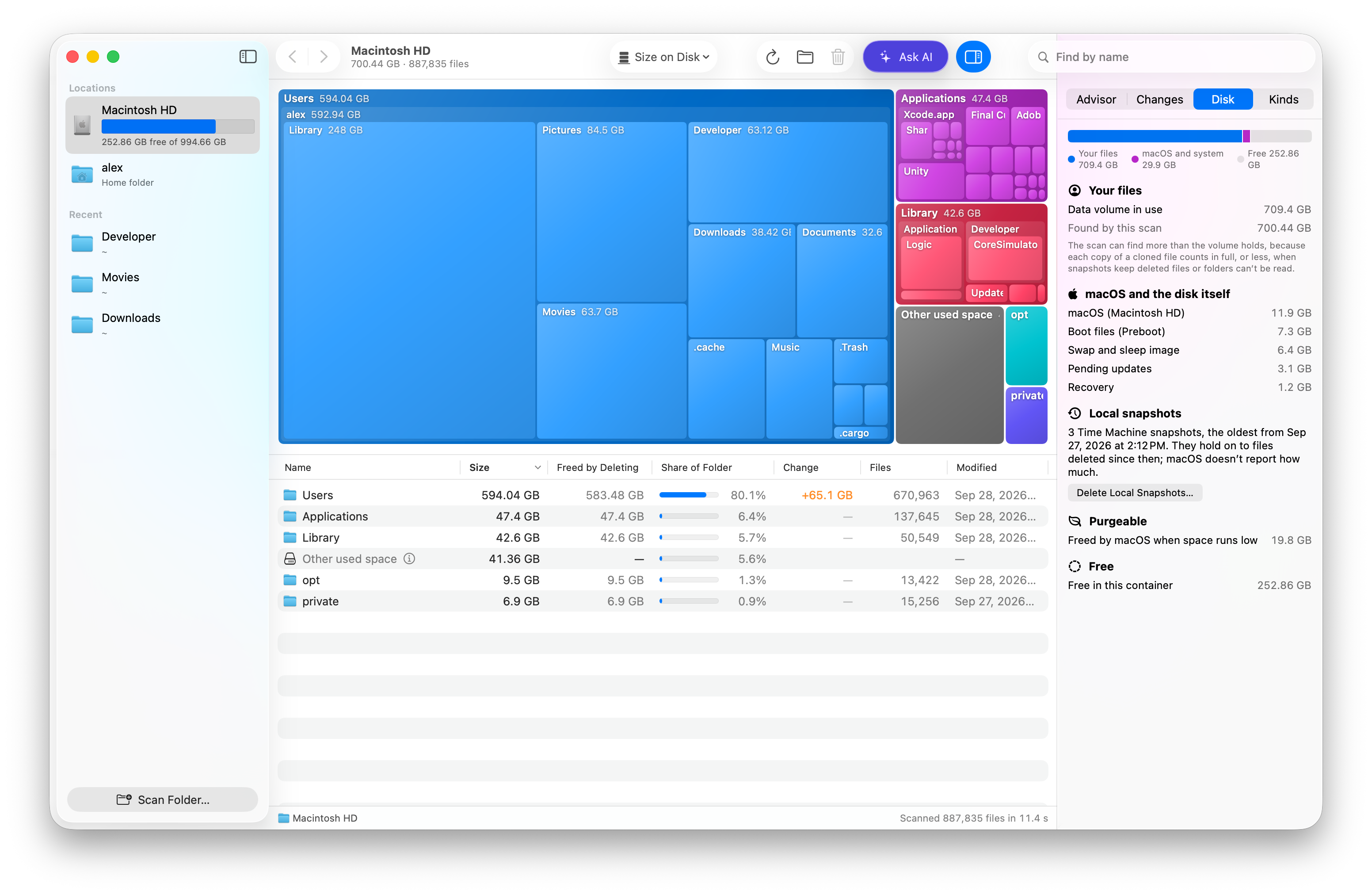
A disk space analyzer does. Disk Map scans your disk and draws it as a treemap: every folder is a tile sized by the space it takes, so the biggest ones stand out, with a table of the same folders under it. Click a tile to go inside. It’s free, and nothing you scan leaves your Mac.
What System Data is
System Data (called Other on older versions of macOS) is space that doesn’t fit another category: caches, logs, swap, local Time Machine snapshots and more. It can be large, and Storage settings show it as one number.
Disk Map’s Disk panel splits it up: macOS, swap, local snapshots and purgeable space, each with its size. Purgeable space is what macOS can free by itself when it needs to. The map shows which folders hold the rest, such as big caches under Library.
Start with steps that lose nothing
- Empty the Trash. Files in it still take space.
- Keep cloud files online only. Files in Dropbox, Google Drive, OneDrive or iCloud Drive can stay in the cloud and download again when you open them.
- Merge duplicates into clones. On APFS, two identical files can share their data. Both stay where they are, and they stop taking the space twice.
- Let Photos keep originals in iCloud. If you use iCloud Photos, Optimize Mac Storage keeps smaller versions on your Mac.
Then clear what apps make again
Caches, installers for apps you already have, and build output such as Xcode’s build data or node_modules folders can be removed, and the app that made them rebuilds or downloads them when it needs them. That can take time, so it comes after the steps above.
Your own files last
Old downloads, videos, disk images and apps you don’t use are yours to decide on. You don’t have to delete them: moving them to another drive or to cloud storage frees the space too.
Check what deleting really frees
APFS copies can share data, so a folder can take 20 GB on disk and free much less when deleted. Disk Map shows both figures, Size on Disk and Space Freed by Deleting, so you know what you’ll get back before you remove anything.
Let Disk Map plan it for you
Disk Map’s Space Advisor follows the same order. Tell it how much space you need, such as 25 GB or Max safe, and it ticks the steps that cost you least, each with the reason it’s safe. Your own files are only marked “Your call”. Nothing happens until you press Apply Selected, and anything moved to the Trash can be put back.
To keep it from filling up again, Disk Map can show your free space in the menu bar and, if you allow it, tell you before the disk runs out. Each scan is compared with the last, so you can see what grew.
More about the Space AdvisorHow Disk Map compares with other apps