Advisor
Free what you need, the safe way
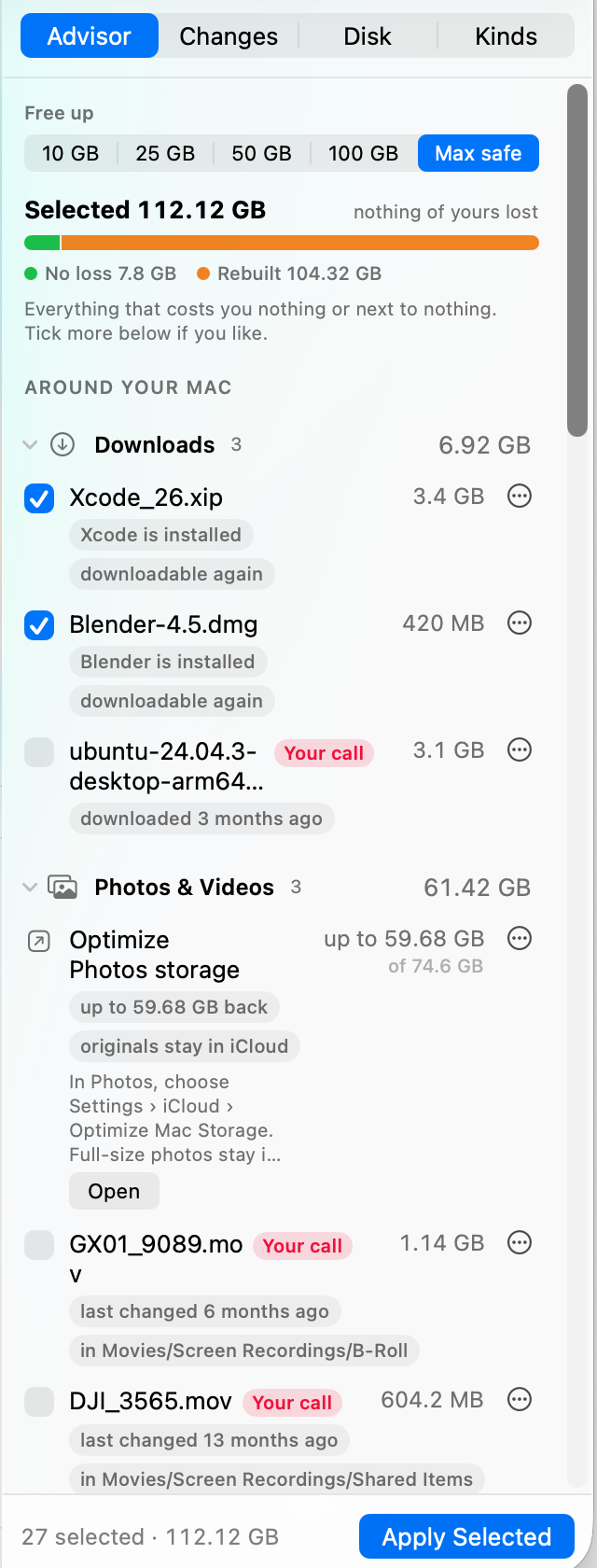
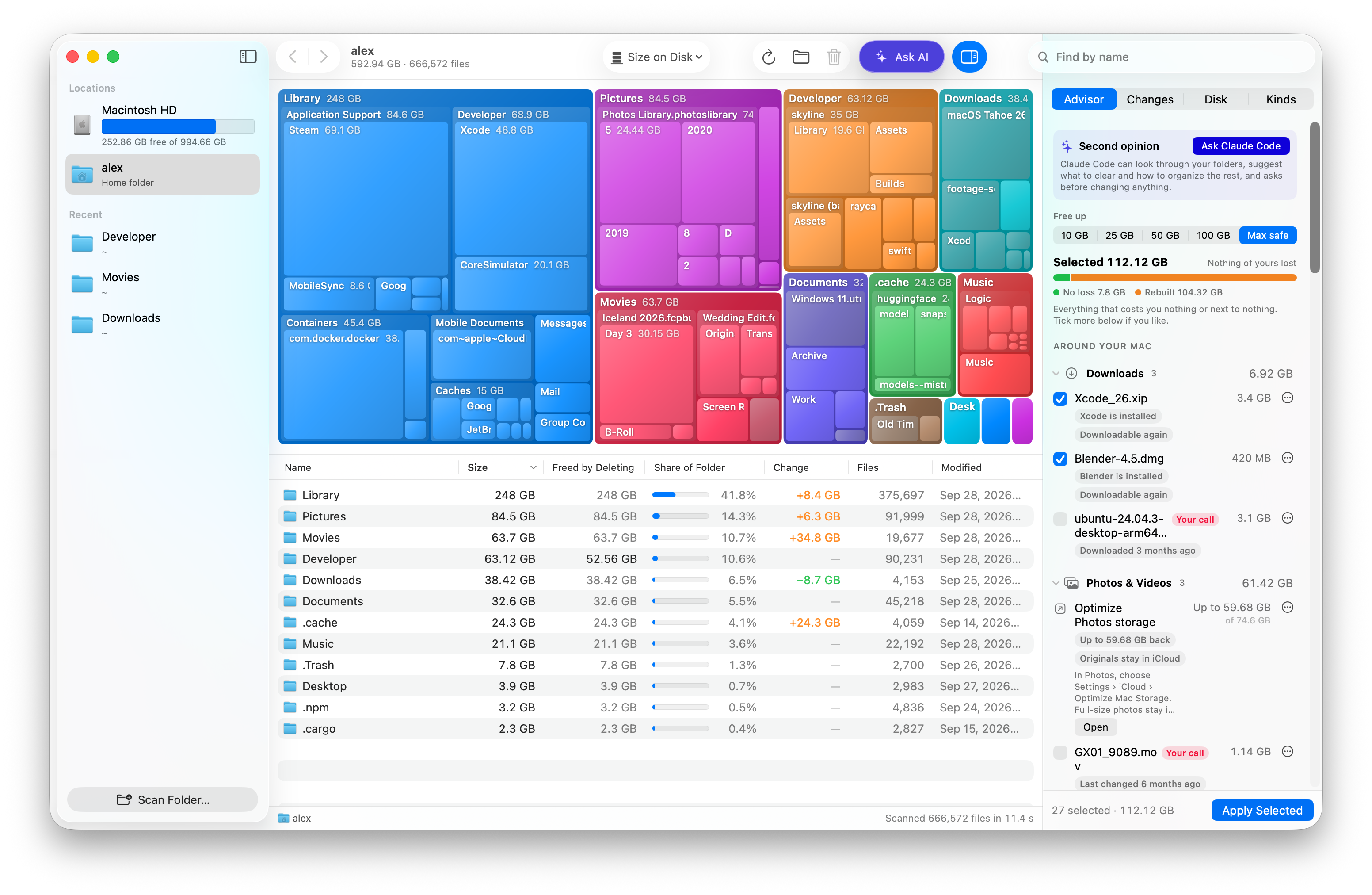
Pick a goal. The cheapest steps are ticked for you: cloud files kept online only, duplicates, caches and installers. Grouped by project, and anything can be hidden.
 Disk Map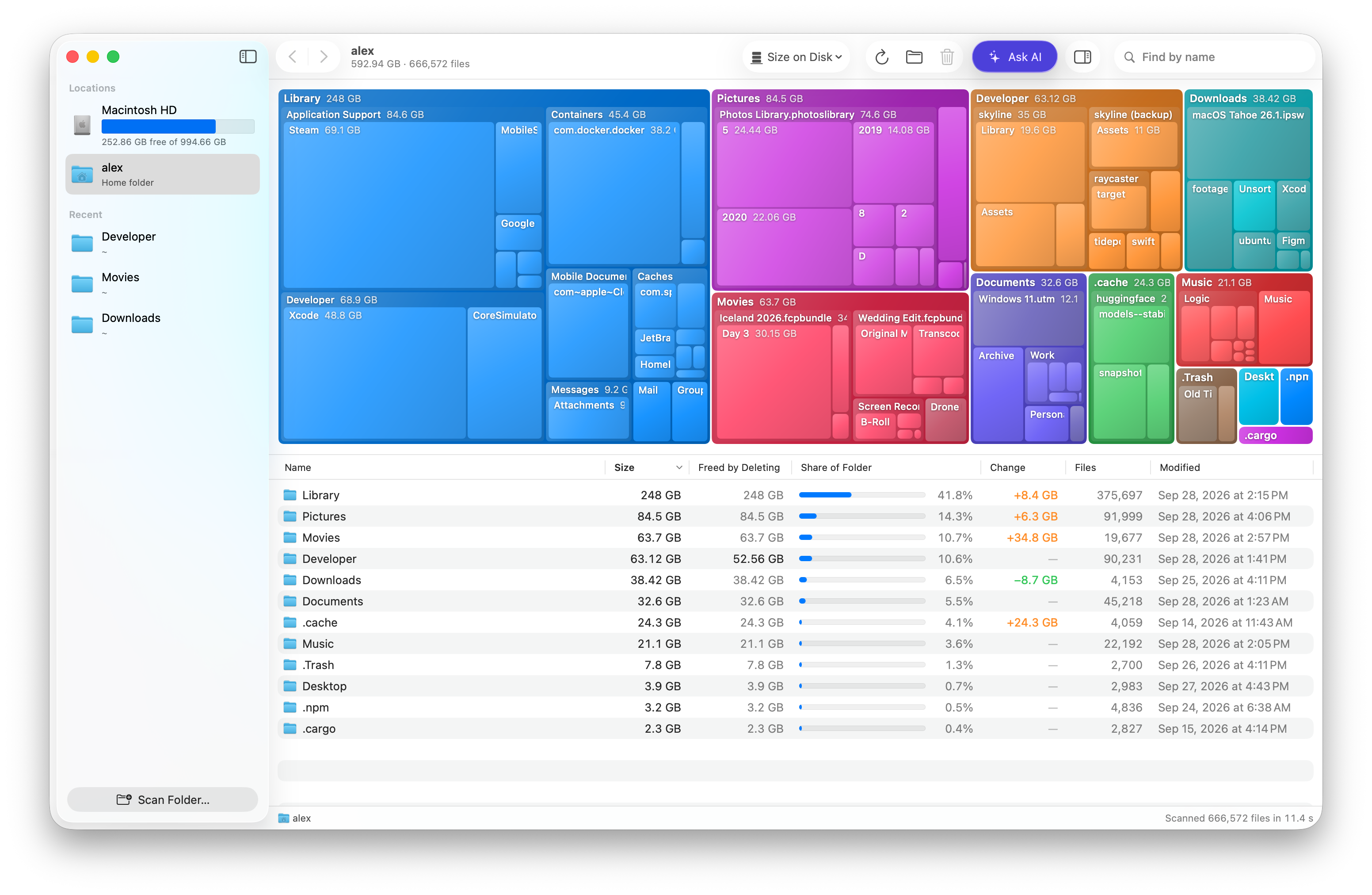
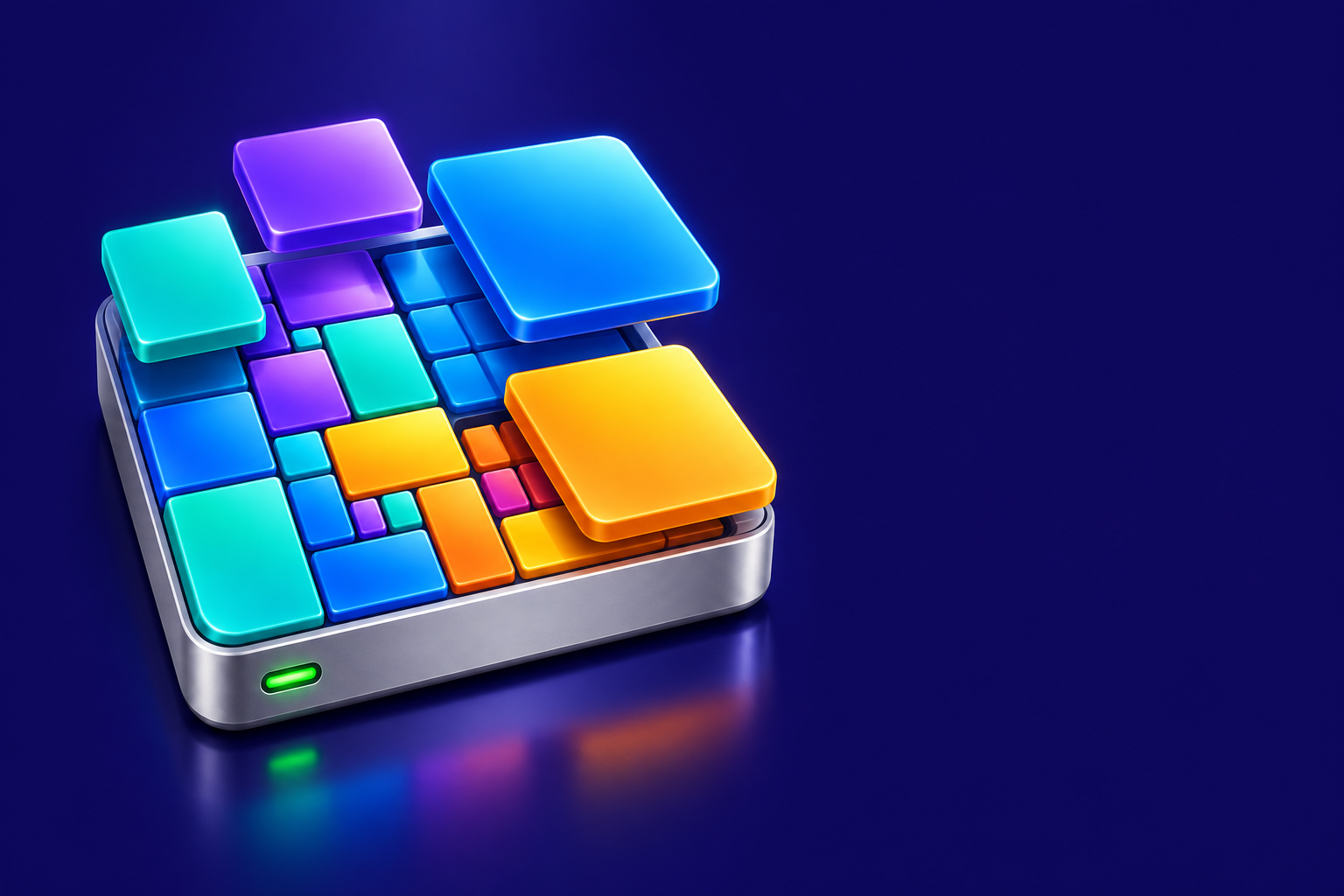
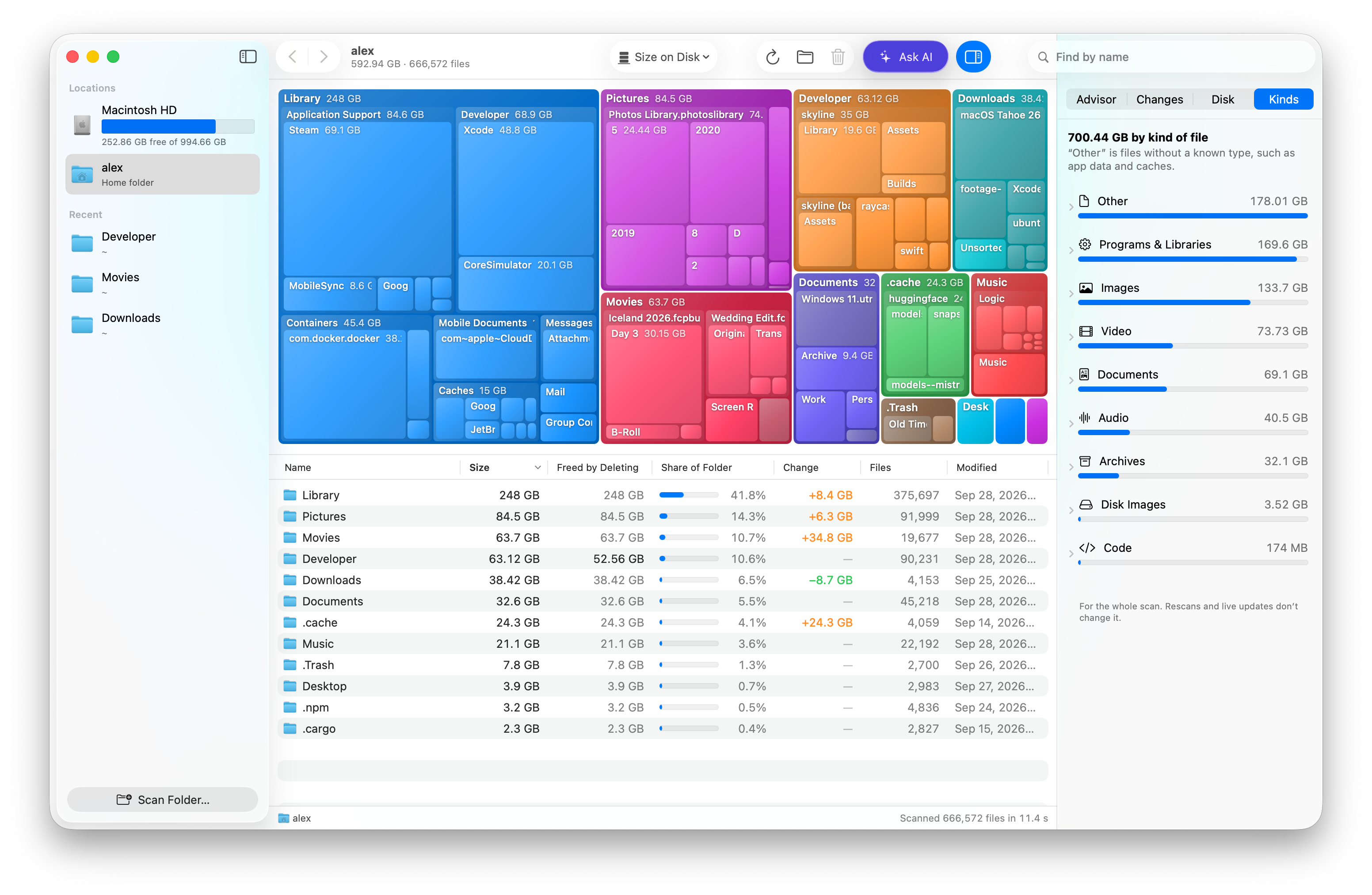
Disk Map is a free disk space analyzer for Mac. It scans a disk or folder and draws it as a treemap, where every folder is a tile sized by the space it takes, above a table of the same folders. It’s for anyone whose Mac is running out of space and who wants to know why before deleting anything. Unlike a plain map, it also plans how to get space back: pick a goal, and it selects the steps that cost you least, starting with ones that lose nothing, like keeping cloud files online only and merging duplicates into APFS clones. It’s a native SwiftUI app for macOS 15 or later on Apple silicon and Intel, with no ads, account or analytics, and nothing you scan leaves your Mac.
How it compares with DaisyDisk, CleanMyMac and GrandPerspectiveHow to free up space on a Mac
Space Advisor
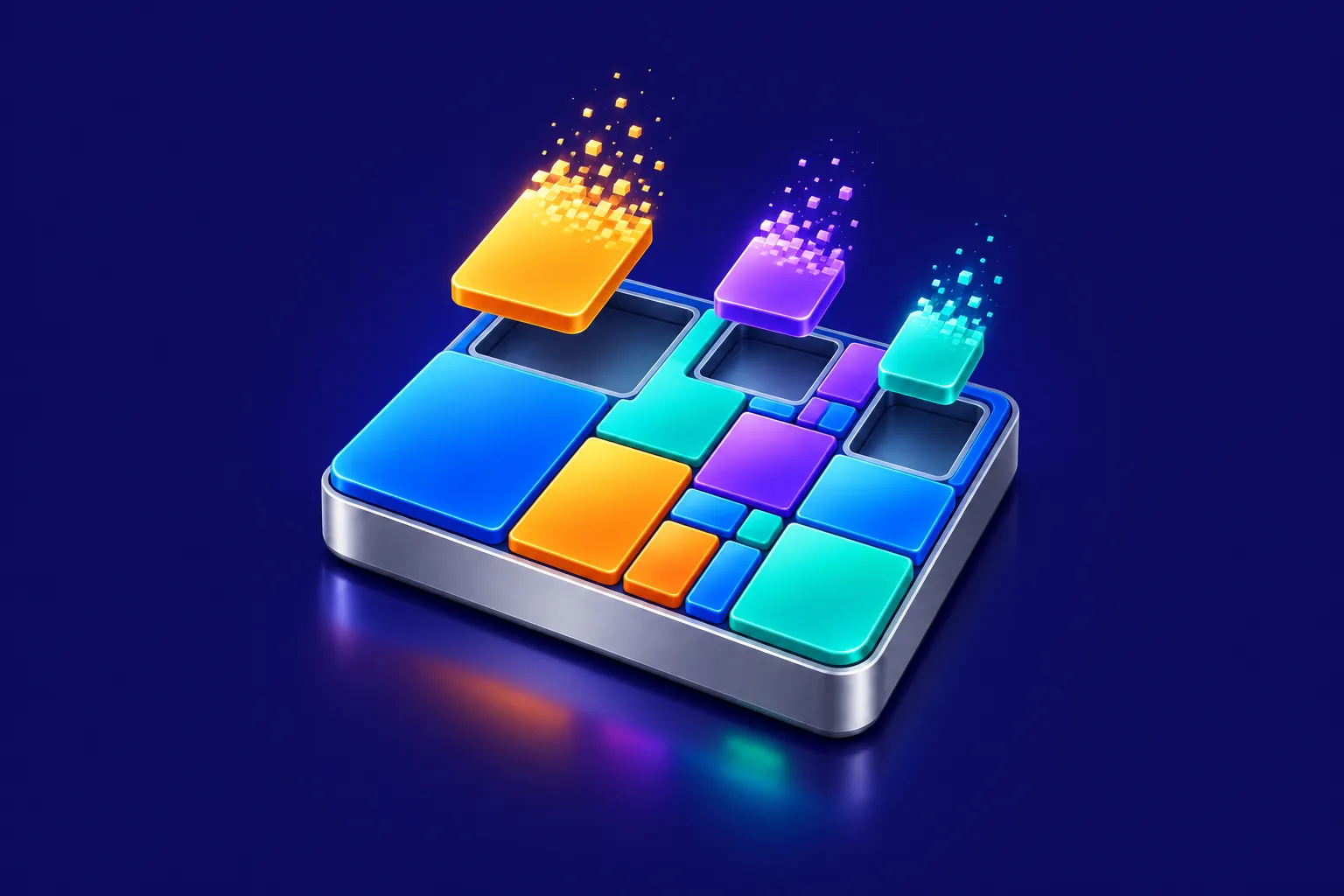
Disk Map finds the steps that cost you least to get it back, and ticks them for you, starting while the scan is still running. Change anything, then press Apply Selected.
Click a tile to go inside. The panel beside it plans what to free.
Advisor
Pick a goal. The cheapest steps are ticked for you: cloud files kept online only, duplicates, caches and installers. Grouped by project, and anything can be hidden.
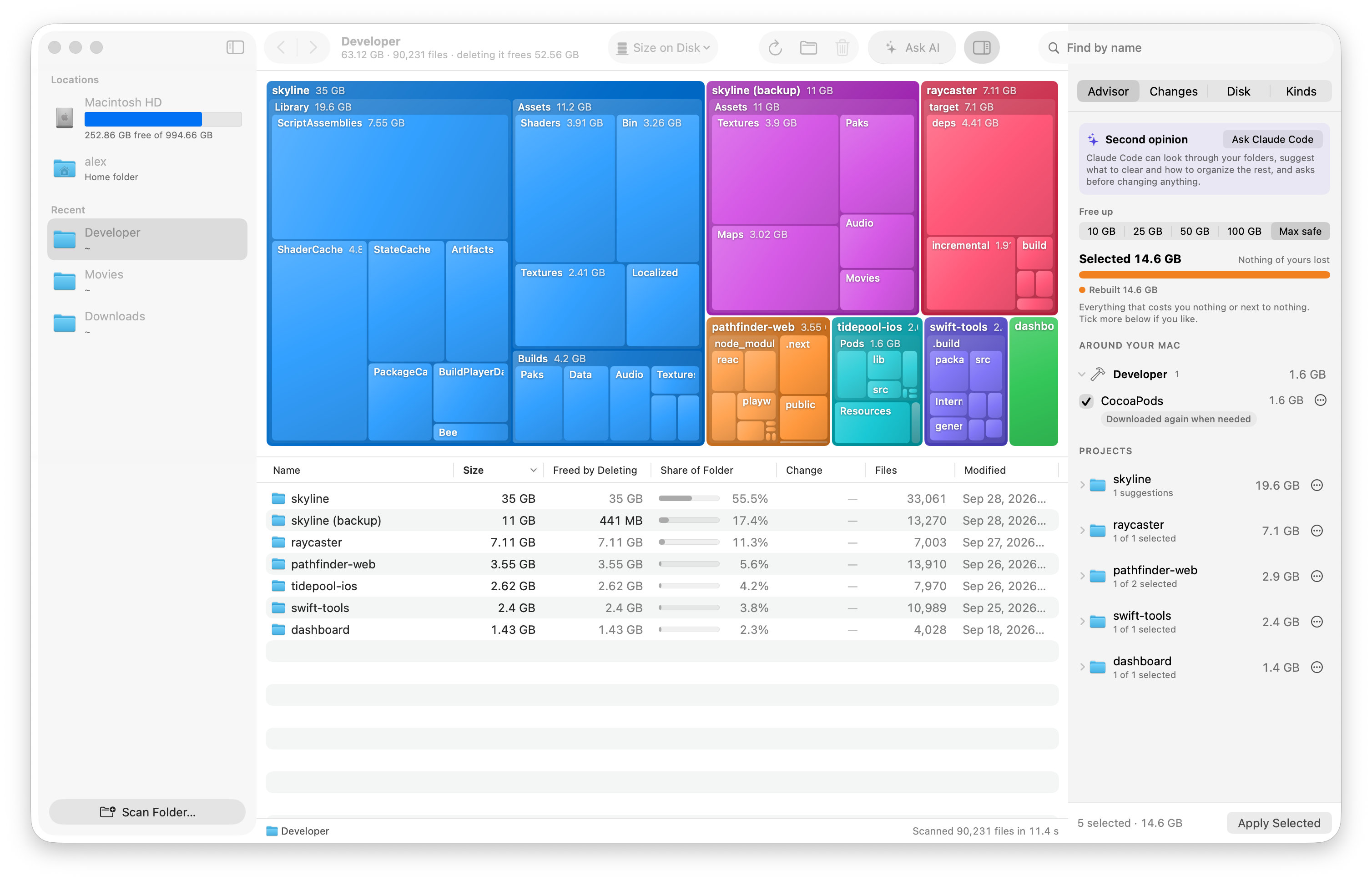
Space Freed by Deleting
APFS copies share data. See both the space a folder takes and what deleting it frees.
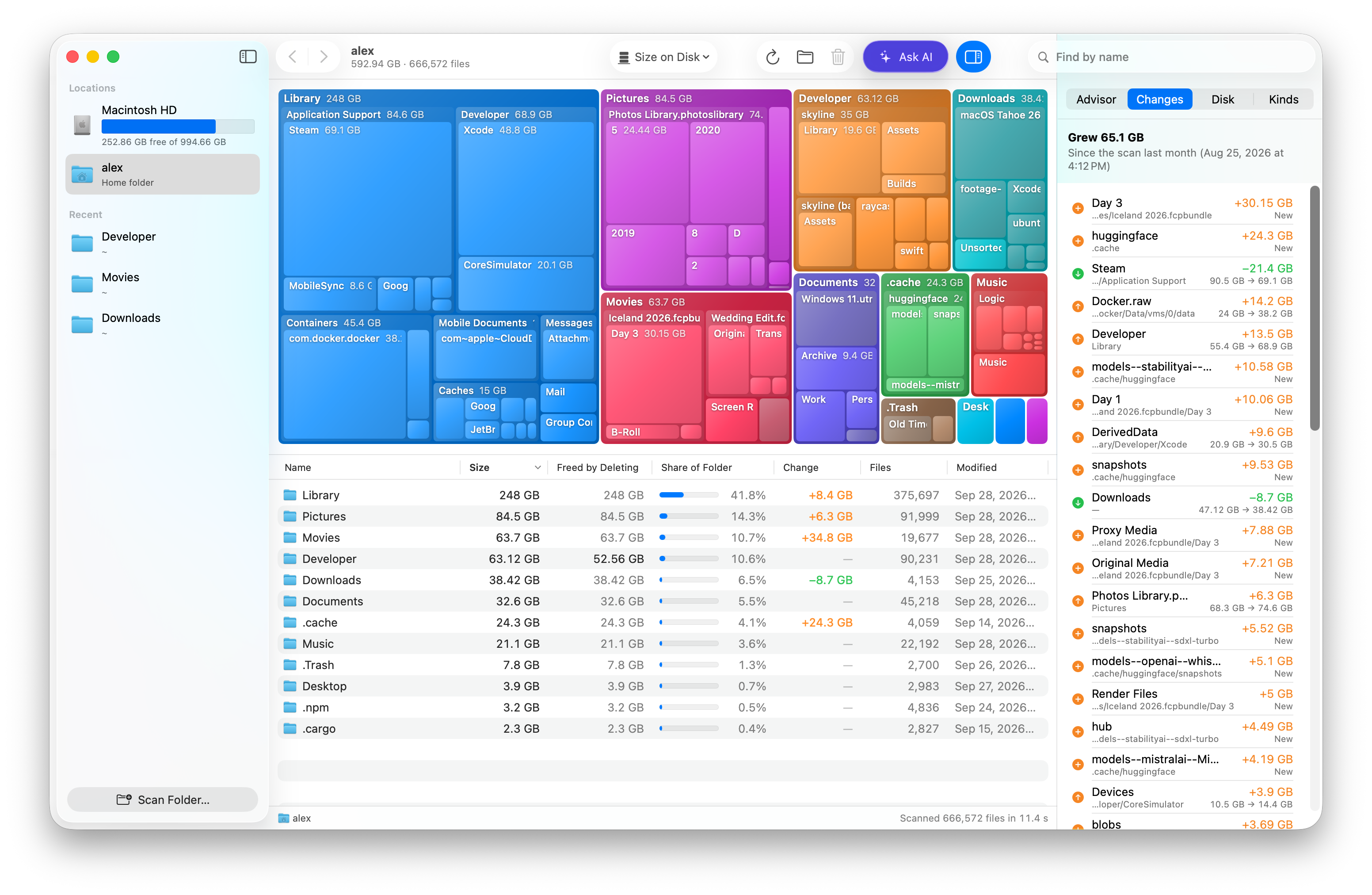
Changes
Each scan is compared with the last, so sudden growth stands out.
Live
Folders grow as the scan runs, then keep up as files change.
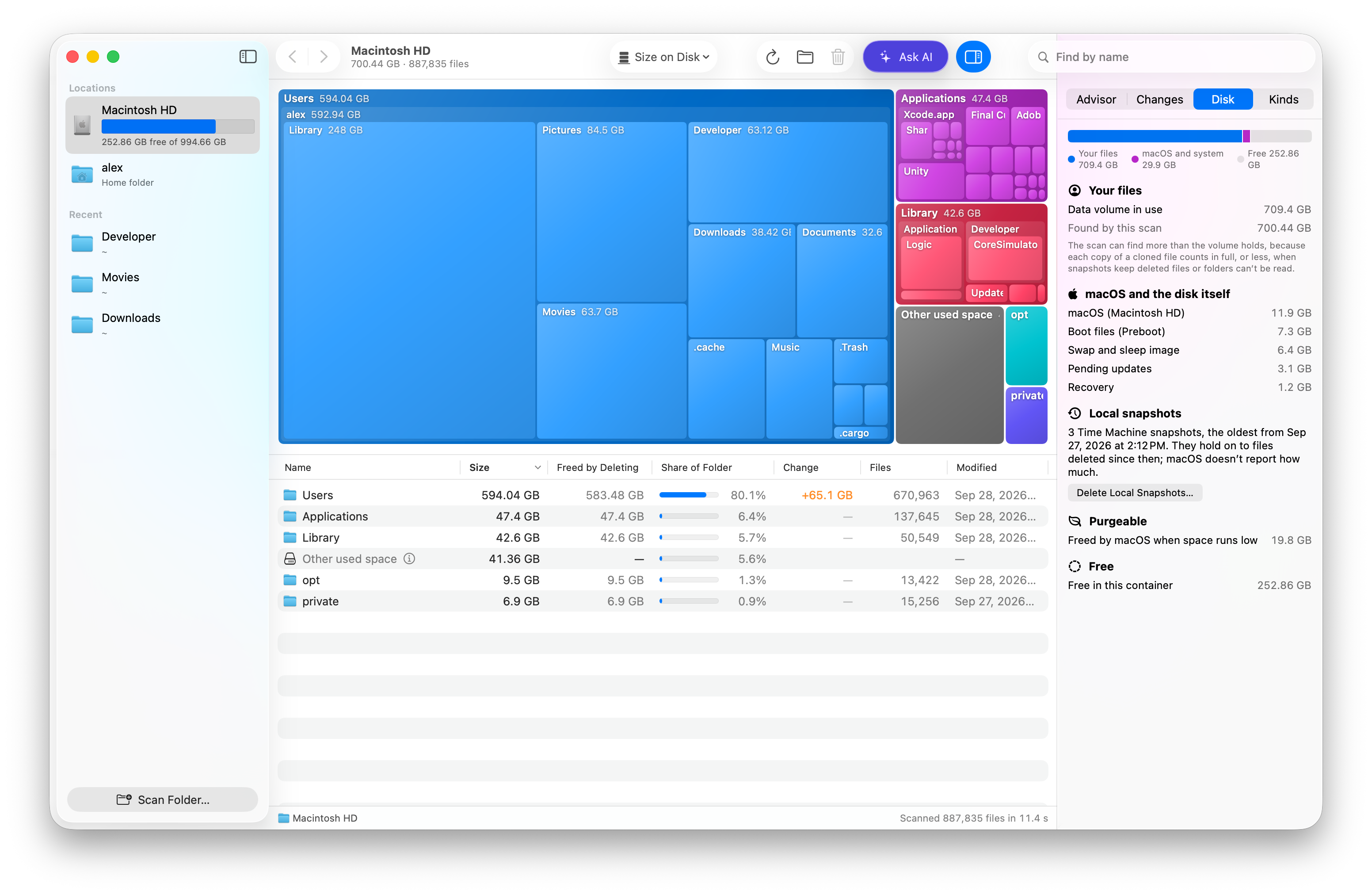
Disk
macOS, swap, snapshots and purgeable space, each with its size.
Menu bar
Your free space in the menu bar, and a heads-up before your disk fills.
No account, no analytics, no uploads.
Scan your startup disk with Disk Map and every folder becomes a tile sized by the space it takes, so the biggest ones stand out. The table under the map lists the same folders by size. The Disk panel adds the space your files don’t explain: macOS, swap, local snapshots and purgeable space.
It’s space macOS doesn’t count in another category, such as caches, logs, local Time Machine snapshots and swap. Older versions of macOS called it Other. Disk Map’s Disk panel shows macOS, swap, snapshots and purgeable space each with its own size, and the map shows which folders hold the rest. How to free up space on a Mac.
Nothing happens until you press Apply Selected. Steps that lose nothing come first, then things apps rebuild or download again. Your own files are never ticked for you. Anything moved to the Trash can be put back.
Files in Dropbox, Google Drive, OneDrive or iCloud Drive stay in the cloud and download again when you open them, so they stop taking space on your Mac.
Only if you allow them, and only when it matters: when your disk is about to run out, or loses a lot of space all at once.
APFS copies can share data. Each copy counts in full on disk, but deleting one frees only what isn’t shared. Disk Map shows both.
No. Without it, protected folders like Mail and Messages are skipped and marked with a lock. The Mac App Store version asks you to pick the disk once instead.
Not unless you send it. There’s no account, analytics or tracking, and the download version only checks for updates, once a day. If you use Ask AI, a report of names, sizes and dates goes to the agent you choose.
It sends a short report of the folder you’re looking at, with a prompt, to an AI agent you already have, such as Claude Code, Codex, Cursor or Grok, to suggest what’s low value and how to organize things. Agents on your Mac open in Terminal, where they can look through your folders themselves and ask you before changing anything. Chat apps like Claude and ChatGPT get the report in a new chat.
The download version checks daily and installs updates when you quit (you can turn this off). The Mac App Store version updates through the App Store.
Yes. No ads, trial or account.
Disk Map is free, maps your disk as a treemap, plans how to reach a space goal with lossless steps first, and shows what deleting really frees when APFS copies share data. Each of the others does some things well too. See the comparison.
macOS 15 Sequoia or later, on Apple silicon and Intel Macs.